Google Safe Browsing warnings and “This site may be hacked / contains malware” messages are terrifying for website owners: traffic drops, users bounce, ads and monetization stop, and your brand reputation takes a hit. The good news: with a disciplined, documented cleanup and the correct review request, you can usually get the warning removed — and recover traffic — within days to weeks.
This guide explains common causes for Google blacklisting, gives a step-by-step removal playbook you can follow now, provides a sample review request you can copy-paste, and shares SEO recovery tips to restore traffic after cleanup.
Quick overview — What Google blacklists and why
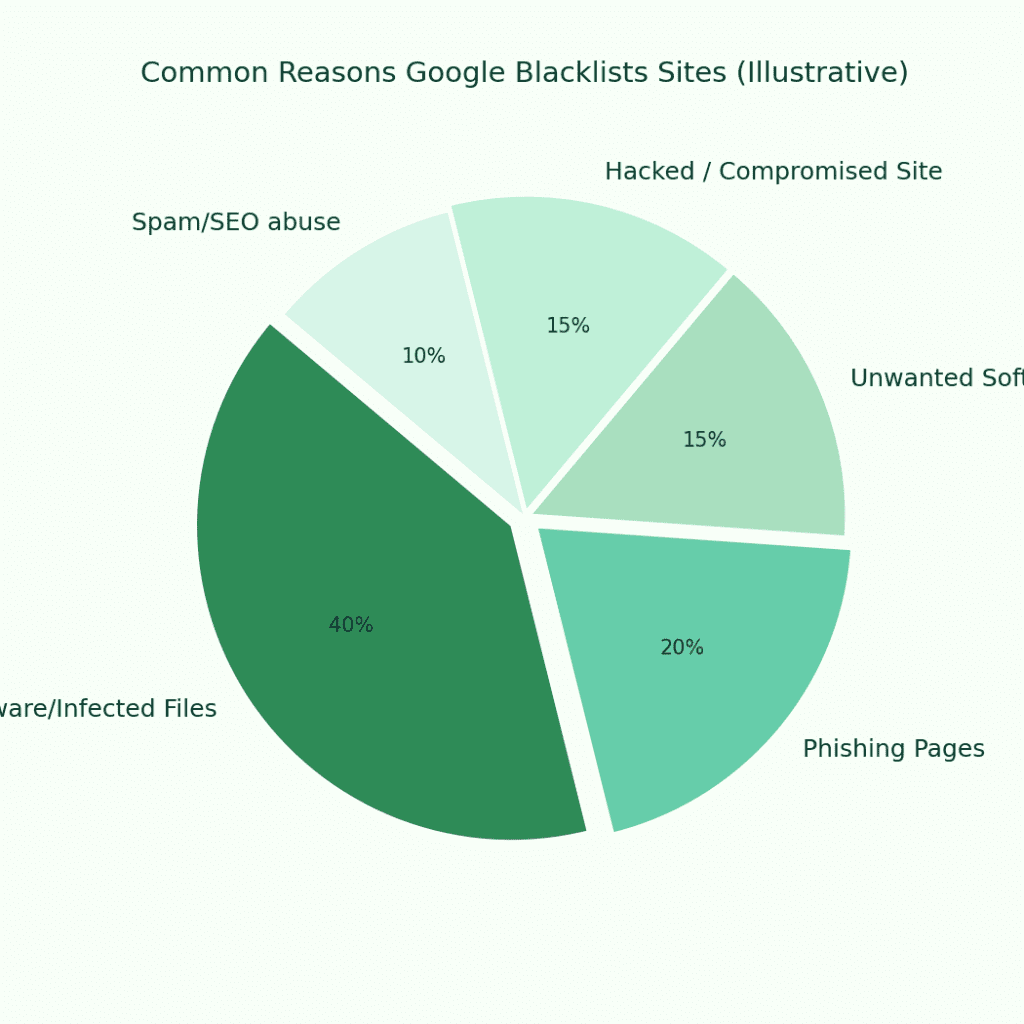
Google’s Safe Browsing system protects users by flagging sites that:
-
Host malicious software (malware): code that infects visitors.
-
Serve phishing pages: pages that steal credentials or payment details.
-
Distribute unwanted software (PUPs) that behave maliciously.
-
Are compromised (site hacked) and used to host spam, redirects, or backdoors.
-
Have been abused for SEO spam, doorway pages or deceptive content.
Immediate consequences of a blacklist: organic traffic drop (often 50–90% for pages that ranked), search console warnings, ad network suspensions, customer trust erosion.
How to confirm you’re blacklisted
-
Open Google Search Console (GSC) → Security Issues (if you have the site verified).
-
Try visiting your site in Chrome — often you’ll see “Deceptive site ahead” or “Site ahead contains malware.”
-
Use Google Safe Browsing diagnostic:
https://transparencyreport.google.com/safe-browsing/search?url=YOURSITE -
External scanners (SiteGuarding, SiteCheck, VirusTotal URL) for independent confirmation — note they might lag behind Google’s flag.
Step-by-step removal playbook (fast, defensible)
This is the practical playbook I recommend. Follow it in order and document every action — Google likes to see evidence.
Step 0 — Immediate containment (first hour)
-
Put site in maintenance mode (show a simple notice).
-
If ecommerce, set clear banner and email support to manage expectation.
-
Snapshot a full backup (forensically) — do not modify it.
Step 1 — Obtain the evidence (diagnose)
-
Check Google Search Console → Security Issues and Manual Actions.
-
Download the list of affected URLs and samples from GSC.
-
Scan with at least two independent tools (Sucuri, VirusTotal, SiteCheck).
-
SSH into server and run file modification checks (recently changed files).
-
Look for suspicious admin users, scheduled tasks (cron), .htaccess redirects, obfuscated code (
eval(base64_decode(etc.).
Useful file checks (server):
Step 2 — Identify Indicators of Compromise (IoCs) & scope
-
Collect IoCs: malicious file paths, IPs that uploaded files, suspicious database entries, injected JS snippets, redirect URLs.
-
Map affected pages and subdomains. Export a list for the review request.
Step 3 — Clean the site (remove threats)
-
Remove malicious files (backdoors, obfuscated PHP) and infected pages.
-
Restore core files from a clean CMS copy (e.g., fresh WordPress core).
-
Replace plugins/themes with fresh copies from official repositories.
-
Clean database of injected content (search for suspicious
<iframe>,<script src=...>, suspicious admin users, and spam posts). -
Rotate all passwords (admins, FTP, DB, API keys). Revoke all active sessions.
Step 4 — Harden & patch
-
Patch CMS, themes, and plugins. Remove unused plugins/themes.
-
Disable file editing (
DISALLOW_FILE_EDIT). -
Fix file permissions (directories 755, files 644, wp-config 600).
-
Block execution in upload directories.
-
Enforce two-factor authentication for admins.
-
Review cron jobs and remove unknown scheduled tasks.
Step 5 — Defensive measures (prevent reinfection)
-
Install a WAF (Cloudflare, Sucuri, ModSecurity rules) to block exploit attempts and virtual patch known plugin holes.
-
Add file integrity monitoring (alert on unexpected file changes).
-
Tighten logging and monitoring.
Step 6 — Build evidence & request a Google review
Prepare a precise review request (see sample below). Provide exact remediation steps taken and proof.
Step 7 — Post-removal monitoring & SEO recovery
-
Monitor GSC daily for messages.
-
Scan the site regularly for 30–90 days.
-
Submit removal request and wait (often hours to days).
-
After removal confirm search result snippets are normal; resubmit sitemaps.
Sample Google Review Request — copy / paste ready
Use this as a template in Google Search Console → Security Issues → Request Review. Keep it factual, concise, and include timestamps and proof links (screenshots).
What to expect after you request removal
-
Google review can take from a few hours to several days. If the issue was limited and proof strong, it’s usually faster.
-
If Google finds residual issues, they will reopen the ticket and give specifics — repeat the remedy cycle and re-submit.
-
Keep iterative logs of what you changed; transparency speeds reviews.
SEO recovery tips post-cleanup
-
Confirm delisting & re-crawl: After removal, ask Google to fetch & render and resubmit sitemaps.
-
Audit key landing pages: Ensure meta descriptions and titles haven’t been altered; canonical tags intact.
-
Restore lost links and outreach: If third-party sites removed links due to the blacklist, contact them with proof of cleanup.
-
Monitor rankings & traffic: Use Google Analytics and GSC to track recovery; set alerts for sudden drops.
-
Rebuild trust signals: Re-enable ads, submit to malware scanners, and publish a site security update for users.
-
Use structured data & revoke stale search snippets: If malware injected spammy snippets, use the URL removal tool for cached snapshots and request re-indexing.
-
Run a content & UX audit: Ensure no doorway pages or low-quality content remains that could prolong ranking penalties.
-
Malware removal & secure cleanup: 1–7 days (depends on scope).
-
Google review and delisting: a few hours to 14 days (typically 24–72 hours if clean).
-
SEO recovery (traffic bounce back): weeks to months; quick wins often in 2–6 weeks for core pages, full recovery can be longer if many links/PR were lost.
Prevention: Stop being blacklisted again
-
Keep CMS, plugins, dependencies up-to-date.
-
Limit administrative privileges & enforce 2FA.
-
Deploy WAF and file integrity monitors.
-
Regular backups with offline copies.
-
Scheduled automated scans + periodic manual security audits.
-
Use managed hosting or security services if you lack internal expertise.
Tell us what you're running
Scoping is free. We reply within one business day, and under 30 minutes for active incidents.